
Local Manager Part 3: The PICO-Specific Configuration Layer Most Operators Never Reach

Part of the series: The Operational System Behind Reliable VR Attractions The first two parts of this Local Manager series covered more ground than expected. Part 1 walked through the operational backbone of SynthesisVR’s VR arcade management system — how it unifies PCVR and standalone headset management into a single interface. Part 2 went into the features operators tend to discover only after something goes wrong: the sleep state indicator, Quick View, Spectator View, and the Steam licensing setup that trips up more venues than it should. The feedback from both was consistent. Operators recognised things they had been doing manually for months. A few reached out to say they had not known certain tools existed at all. Part 3 covers the layer above that. Specifically, the PICO Enterprise configuration built into Local Manager, the LBE tab, wireless ADB, map sharing across a headset fleet, Environment Profiles, and PICO Business Streaming. These are the tools that separate a headset fleet management operation running smoothly at scale from one where staff are still walking into the arena to fix headsets between sessions. If you are running PICO 4 Enterprise or PICO 4 Ultra Enterprise headsets, everything in this article is already available to you. Wireless ADB: What It Unlocks and Why It Matters On consumer VR headsets, enabling USB debugging means physically plugging the device into a PC every time it restarts. For a fleet of eight headsets across two arenas, that adds up quickly. PICO Enterprise headsets handle it differently. Open Settings on the headset, go to Developer, then Business Settings, then Lab, and activate Wireless Debugging. Once enabled, Local Manager connects ADB wirelessly with a single click. No cables. No manual intervention per device before each session. That connection unlocks a set of controls that are not available by default in your VR venue management interface: Install APK pushes any application file from your PC directly to the headset, useful for sideloading content or updates outside the standard commercial licensing flow.Uninstall APK removes applications remotely. Restart Headset and Restart SynthesisVR give staff the ability to recover a device from the desk without stepping into the play space, which matters when a group is waiting.View Log pulls diagnostic logs from each headset directly through Local Manager, the support team will ask for these when troubleshooting persistent issues, and having them accessible without physical access to the device saves significant time.Licenses shows every commercially licensed standalone game available to install on that headset, which is the fastest way to provision a new device or recover one after a reset. For any LBE operator managing a multi-headset fleet, these are not advanced features. They are the baseline for running efficiently. The LBE Tab: Fleet Control Built Into Local Manager When a PICO Enterprise headset is registered under a SynthesisVR account, the platform detects the built-in LBE software automatically. The LBE tab appears in the headset settings without any manual activation. For operators coming from consumer headsets or earlier enterprise setups, this is where standalone VR management starts to look genuinely different. The most operationally significant setting is Large Space mode. Disabled by default, enabling it expands the supported tracking area up to 30x30m (98x98ft), the range that free roam titles running in larger arenas require. When you enable it, Local Manager prompts you to name the map before the creation process begins on the headset. Naming maps clearly from the start, “Free Roam 10×10,” “Escape Room 6×6”, pays off when managing multiple configurations across a venue. Beyond Large Space, the LBE tab surfaces several controls that most operators reach only when something goes wrong. Texture Scanning scans the physical environment and returns a real-time quality rating, Good, OK, or Poor, before a map is finalised. Part 2 of this series covered why plain walls undermine inside-out tracking. Texture Scanning is the tool that confirms whether the space is ready before guests arrive, not after a session fails. Hardware button controls allow operators to disable the power button, volume button, back button, and system menu individually on each headset. Disabling these during active sessions is straightforward once configured and prevents the most common source of mid-session interruptions, a player accidentally pressing something they should not have. Screen On/Off, Recenter, and Seethrough Switch round out the remote control options, all manageable from the Local Manager desk without physical access to the headset. Map Sharing: One Calibration, Every Headset Calibrating a boundary map on each headset individually is one of the more time-consuming parts of free roam VR setup. For a ten-headset fleet, doing it manually on each device is an hour of work that can be reduced to minutes. Once you create and calibrate a map on one headset, Export Device Map to Proxy saves it to the Admin PC. From the LBE button in the top right corner of Local Manager, you can push that map to every connected PICO headset simultaneously. All devices share the same boundary. No redrawing. No recalibration per unit. Two things need to be in place before this works correctly. Temporary boundaries must be disabled, and automated streaming must be enabled from Local Manager. If someone deployed the map directly through the PICO Business Suite outside of SynthesisVR, it needs to be removed first, it can overwrite the boundary being managed through the platform and force-close an active session, which is not a recoverable mid-group situation. For venues running multiple space configurations, a larger free roam footprint for evening groups and a smaller setup for daytime walk-ins, deploying different maps to the fleet on a schedule is where the next feature becomes relevant. Environment Profiles: Saving What Works Map sharing handles deployment. Environment Profiles handle the operational layer above it. Once a boundary configuration produces consistent, reliable sessions, a specific map combined with a play area setup and headset configuration that the team trusts, Environment Profiles let operators save that state and restore it without starting from scratch. For VR venues running multiple experience types with different
Local Manager: The Features Most Operators Discover Too Late
Last week covered the operational backbone of SynthesisVR Local Manager and how it unifies PCVR and standalone VR arcade management into a single interface. If you missed it, start here first: https://synthesisvr.com/vr-arcade-management-software/ Most operators establish Local Manager, acquire the fundamental knowledge, and proceed. However, beneath the surface lie features that directly impact session quality, VR headset fleet management, and daily throughput in location-based entertainment VR venues. These features only become apparent when issues arise or when support tickets accumulate in our inbox for the third time within a month. This article delves into the most frequently overlooked aspects. The Zzz Icon: The Small Symbol That Kills Sessions Picture this. A group is ready, your staff hits Launch, and nothing happens. The headset is on, the game is licensed, everything looks fine. The culprit is a small icon in the top right corner of the station screen that most operators have never noticed. The Zzz symbol means the headset is in sleep mode. It is not being worn, or it has gone idle. Launch a session against a sleeping headset and the game either fails silently or starts in a state the guest cannot recover from without staff intervention. The fix is simple once you know it exists. Before every launch, check the station row for the Zzz indicator. If it is showing, wake the headset first. Ten seconds of awareness before launch saves a ruined session and an awkward conversation with a group who just sat down. In a busy LBE VR operation running back-to-back sessions, this single check is worth adding to your staff pre-launch routine today. It costs nothing and protects VR arcade throughput during peak hours. The Gear Icon: The Setting in Plain Sight Click the gear on any title inside Local Manager and you get access to a panel that controls the full lifecycle of that game across your connected VR headset fleet. Info, Update, Install, Uninstall, all from one place, across all your headsets simultaneously. When a game crashes unexpectedly or throws an error on launch, Verify Game Files is one of your first stops. It checks the integrity of the install across your connected headsets and resolves the majority of content issues in minutes, without needing to contact support. The Install tab shows every station where the game can be added. The Uninstall tab shows where it currently lives and lets you remove it selectively. If you are adding a new headset to your fleet or recovering a device after a reset, this is how you get it back in sync without touching each unit individually. For standalone VR arcade environments managing mixed hardware across multiple stations, this panel is the fastest way to keep your fleet consistent. You can also configure VR controller behaviour per game from here, customising how controllers respond within a specific title. Worth exploring for games where the default setup does not feel quite right for your guests. Note that certain tabs only appear if the game supports those options, so do not be alarmed if a tab is missing for a particular title. Quick View: Your Eyes on Any Station Without Leaving the Desk One of the most underappreciated tools in Local Manager is Quick View. It gives operators a live look at any connected station directly through the Local Manager interface, without needing a full remote desktop session. Is the game running? Is the headset sitting on the menu screen? Is something frozen? Quick View answers those questions in seconds from the front desk. For location-based entertainment VR venues running multiple sessions simultaneously, fast station visibility is a direct contributor to VR arcade throughput. It is not designed to replace dedicated remote desktop tools like RustDesk for deep troubleshooting, but for the fast checks that happen dozens of times a day it is significantly quicker. It also works reliably over LAN, which makes it a practical fallback when an internet outage takes your remote desktop connection offline. In a live venue with guests waiting, that matters. Spectator View: See Exactly What Your Guests See Spectator View gives operators and staff a real-time window into active gameplay from a dedicated screen, without entering the arena or interrupting the session. It runs on a dedicated game server PC that operates separately from your VR gaming stations. From that screen, staff can monitor guest progress, observe gameplay, and adjust session parameters on the fly including game mode, map size, player names, headset calibration, and team management, all without touching a headset or stepping into the play area. The practical applications go beyond monitoring. Venues can display the live gameplay feed on an external screen for guests waiting outside the arena, which builds anticipation and drives walk-in bookings. For troubleshooting mid-session issues, Spectator View lets you see exactly what the guest sees before deciding whether to intervene. One operational detail worth knowing: the game server PC running Spectator View carries no commercial usage billing. It exists purely to manage and observe sessions, which means the cost of running it does not compound against your commercial VR content licensing usage. Spectator View is available through the Standalone Game Server module. For free roam VR management environments running premium multiplayer titles that require a dedicated server instance, this module covers both needs from a single setup. Steam in a Commercial Venue: What Operators Get Wrong Steam personal accounts and commercial VR operations do not mix, and the confusion around this costs operators time, licensing headaches, and occasionally failed sessions at the worst possible moment. Each VR station requires its own dedicated Steam account. A personal account cannot be shared across multiple stations simultaneously. Running a personal Steam library on commercial hardware is a terms of service violation and creates unpredictable behaviour when Steam pushes updates or prompts account verification mid-session. For commercial content, SynthesisVR uses a Pay-Per-Minute licensing model that operates independently of Steam entirely. Games are delivered through the SynthesisVR CDN, a dedicated content delivery network that distributes commercially licensed VR
Automating the Most Repeated Task in Your VR Venue
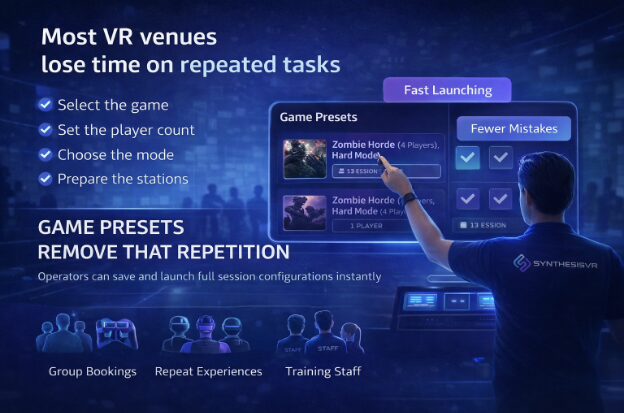
Every venue running VR attractions has tasks that repeat throughout the day.Whether it is a VR arcade, family entertainment center, or a restaurant offering VR experiences, staff regularly prepare the same session configurations for different guests. Each step takes only a moment, but across dozens of sessions it becomes part of the operational workload. During busy hours, even small preparation steps slow down turnover and increase the chance of mistakes. Game Presets were created to remove this repetition. Preparing a Session Once Instead of Every Time Game Presets allow operators to save a full launch configuration and reuse it instantly. A preset can include any parameters supported by the title, such as player count, game mode, difficulty, session settings, and operator-defined details like prepared player names. Instead of configuring the experience before every group, staff select the preset and launch the session with the intended setup already applied. The action is simple, but the effect is operational.The session becomes prepared in advance rather than assembled at the counter. For configuration instructions, operators can follow the guide:How to Create Game Presets Designed for LBE Venue Workflows In practice, many sessions repeat throughout the day. A venue may run the same cooperative mode, tournament setup, or group experience dozens of times. Presets allow staff to focus on guests instead of remembering configuration details. This is especially useful for group visits, parties, and standalone headset events where preparation time is limited and sessions must start on schedule. Consistency Customers Can Feel Beyond speed, presets improve reliability. The experience sold to the customer matches the experience deliveredGroups receive identical gameplay across visitsMulti-station launches remain synchronized Small configuration differences are often unnoticed by staff but obvious to players. Standardized launches prevent these inconsistencies and reduce support interruptions during operation. A Foundation for Automated Operations Presets also function as predefined launch instructions inside the Local Manager. Because the configuration is already defined, external workflows can trigger the correct experience automatically. A booking or scheduling system can prepare the session at the start time without manual interaction. For venues scaling to higher throughput, this removes repeated staff actions from the launch process and turns session preparation into a predictable step within the overall operation. Available in Essential Access Game Presets are included in the Essential Access plan. Essential Access provides access to the SynthesisVR platform without a monthly commitment, allowing venues to operate real sessions while evaluating workflows in their own environment. The included $250 software credit can be applied toward additional features as needed, making it possible to test operational tools before deciding how the system should be configured long term. This approach is useful both for new venues validating VR as an attraction and for existing operators comparing operational workflows during a potential migration. Many operators initially focus on installing stations and content, and only later realize presets can simplify daily operation. Try It in Your Venue Operators interested in simplifying session preparation can activate Essential Access and build their own preset-based workflow. Contact SynthesisVR to request a trial and test it in your venue.