Last week covered the operational backbone of SynthesisVR Local Manager and how it unifies PCVR and standalone VR arcade management into a single interface. If you missed it, start here first: https://synthesisvr.com/vr-arcade-management-software/
Most operators establish Local Manager, acquire the fundamental knowledge, and proceed. However, beneath the surface lie features that directly impact session quality, VR headset fleet management, and daily throughput in location-based entertainment VR venues. These features only become apparent when issues arise or when support tickets accumulate in our inbox for the third time within a month. This article delves into the most frequently overlooked aspects.
The Zzz Icon: The Small Symbol That Kills Sessions
Picture this. A group is ready, your staff hits Launch, and nothing happens. The headset is on, the game is licensed, everything looks fine. The culprit is a small icon in the top right corner of the station screen that most operators have never noticed.
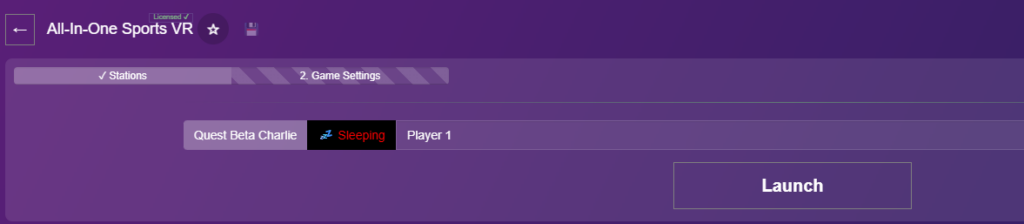
The Zzz symbol means the headset is in sleep mode. It is not being worn, or it has gone idle. Launch a session against a sleeping headset and the game either fails silently or starts in a state the guest cannot recover from without staff intervention.
The fix is simple once you know it exists. Before every launch, check the station row for the Zzz indicator. If it is showing, wake the headset first. Ten seconds of awareness before launch saves a ruined session and an awkward conversation with a group who just sat down.
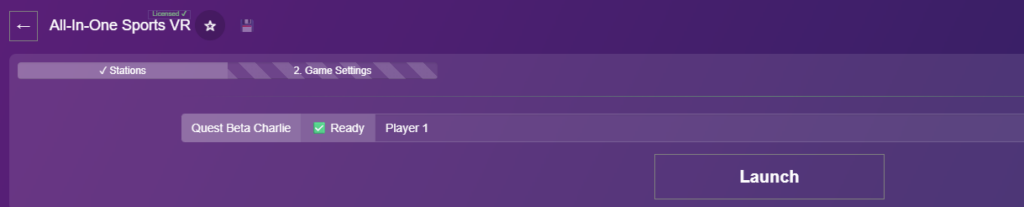
In a busy LBE VR operation running back-to-back sessions, this single check is worth adding to your staff pre-launch routine today. It costs nothing and protects VR arcade throughput during peak hours.
The Gear Icon: The Setting in Plain Sight
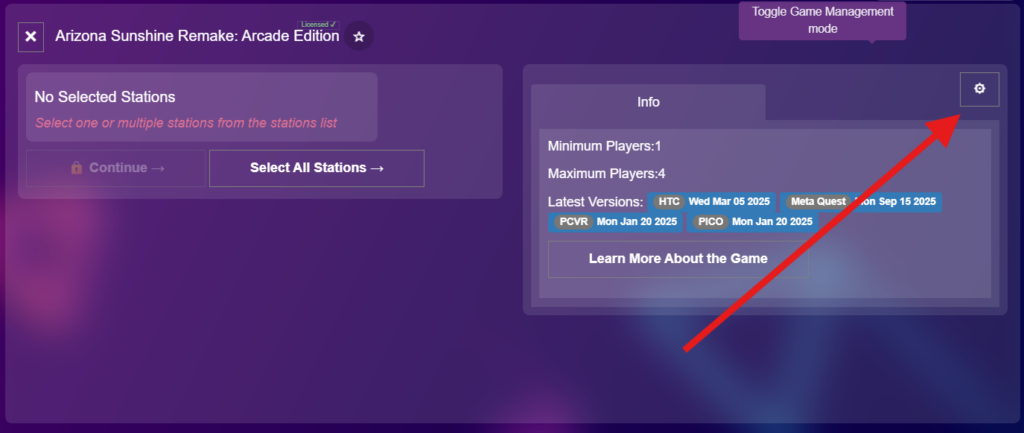
Click the gear on any title inside Local Manager and you get access to a panel that controls the full lifecycle of that game across your connected VR headset fleet. Info, Update, Install, Uninstall, all from one place, across all your headsets simultaneously.
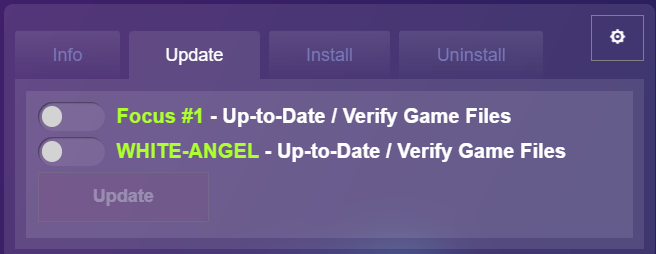
When a game crashes unexpectedly or throws an error on launch, Verify Game Files is one of your first stops. It checks the integrity of the install across your connected headsets and resolves the majority of content issues in minutes, without needing to contact support.
The Install tab shows every station where the game can be added. The Uninstall tab shows where it currently lives and lets you remove it selectively. If you are adding a new headset to your fleet or recovering a device after a reset, this is how you get it back in sync without touching each unit individually.
For standalone VR arcade environments managing mixed hardware across multiple stations, this panel is the fastest way to keep your fleet consistent.
You can also configure VR controller behaviour per game from here, customising how controllers respond within a specific title. Worth exploring for games where the default setup does not feel quite right for your guests.
Note that certain tabs only appear if the game supports those options, so do not be alarmed if a tab is missing for a particular title.
Quick View: Your Eyes on Any Station Without Leaving the Desk
One of the most underappreciated tools in Local Manager is Quick View. It gives operators a live look at any connected station directly through the Local Manager interface, without needing a full remote desktop session.

Is the game running? Is the headset sitting on the menu screen? Is something frozen? Quick View answers those questions in seconds from the front desk.
For location-based entertainment VR venues running multiple sessions simultaneously, fast station visibility is a direct contributor to VR arcade throughput. It is not designed to replace dedicated remote desktop tools like RustDesk for deep troubleshooting, but for the fast checks that happen dozens of times a day it is significantly quicker.
It also works reliably over LAN, which makes it a practical fallback when an internet outage takes your remote desktop connection offline. In a live venue with guests waiting, that matters.
Spectator View: See Exactly What Your Guests See
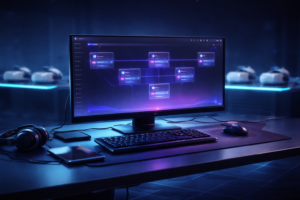
Spectator View gives operators and staff a real-time window into active gameplay from a dedicated screen, without entering the arena or interrupting the session.
It runs on a dedicated game server PC that operates separately from your VR gaming stations. From that screen, staff can monitor guest progress, observe gameplay, and adjust session parameters on the fly including game mode, map size, player names, headset calibration, and team management, all without touching a headset or stepping into the play area.
The practical applications go beyond monitoring. Venues can display the live gameplay feed on an external screen for guests waiting outside the arena, which builds anticipation and drives walk-in bookings. For troubleshooting mid-session issues, Spectator View lets you see exactly what the guest sees before deciding whether to intervene.
One operational detail worth knowing: the game server PC running Spectator View carries no commercial usage billing. It exists purely to manage and observe sessions, which means the cost of running it does not compound against your commercial VR content licensing usage.
Spectator View is available through the Standalone Game Server module. For free roam VR management environments running premium multiplayer titles that require a dedicated server instance, this module covers both needs from a single setup.
Steam in a Commercial Venue: What Operators Get Wrong
Steam personal accounts and commercial VR operations do not mix, and the confusion around this costs operators time, licensing headaches, and occasionally failed sessions at the worst possible moment.
Each VR station requires its own dedicated Steam account. A personal account cannot be shared across multiple stations simultaneously. Running a personal Steam library on commercial hardware is a terms of service violation and creates unpredictable behaviour when Steam pushes updates or prompts account verification mid-session.
For commercial content, SynthesisVR uses a Pay-Per-Minute licensing model that operates independently of Steam entirely. Games are delivered through the SynthesisVR CDN, a dedicated content delivery network that distributes commercially licensed VR titles directly to your venues without going through consumer storefronts. You do not need a Steam account to run commercially licensed titles through the platform. Local Manager handles launch, session timing, and usage tracking automatically as part of a complete VR arcade management system.
If you want to run personal Steam content alongside commercially licensed titles, that is possible through a specific add-on feature within SynthesisVR. Each setup requires a separate, dedicated Steam account per station, kept entirely distinct from any personal library.
Getting this right before opening saves significant operational friction. It is one of the most common account setup mistakes we see from new venues, and one of the easiest to avoid. For anyone building out a VR arcade business plan, resolving the Steam setup early keeps your commercial VR content licensing clean and your sessions predictable from day one.
New to SynthesisVR? Start With a Free Trial
If you are planning a new VR venue or evaluating platforms as an existing operator, SynthesisVR offers a trial environment where you can explore the full workflow before committing. New locations can use this period to lock in their session launch process, test content across their hardware, and confirm their setup is solid before going live.
Register and Discover SynthesisVR with our onboarding team
__________________________________________________________________________
Coming Up next
Next we go deeper into the PICO-specific toolset inside Local Manager: the LBE tab, ADB commands, map sharing, environmental profiles, and the business streaming setup for PICO and SteamVR. If you are running or planning a PICO fleet, Part 3 covers the advanced configuration layer that separates a stable free roam VR management operation from one that requires constant staff intervention.