
Part of the series: The Operational System Behind Reliable VR Attractions
The first two parts of this Local Manager series covered more ground than expected. Part 1 walked through the operational backbone of SynthesisVR’s VR arcade management system — how it unifies PCVR and standalone headset management into a single interface. Part 2 went into the features operators tend to discover only after something goes wrong: the sleep state indicator, Quick View, Spectator View, and the Steam licensing setup that trips up more venues than it should.
The feedback from both was consistent. Operators recognised things they had been doing manually for months. A few reached out to say they had not known certain tools existed at all.
Part 3 covers the layer above that. Specifically, the PICO Enterprise configuration built into Local Manager, the LBE tab, wireless ADB, map sharing across a headset fleet, Environment Profiles, and PICO Business Streaming. These are the tools that separate a headset fleet management operation running smoothly at scale from one where staff are still walking into the arena to fix headsets between sessions.
If you are running PICO 4 Enterprise or PICO 4 Ultra Enterprise headsets, everything in this article is already available to you.
Wireless ADB: What It Unlocks and Why It Matters
On consumer VR headsets, enabling USB debugging means physically plugging the device into a PC every time it restarts. For a fleet of eight headsets across two arenas, that adds up quickly. PICO Enterprise headsets handle it differently.
Open Settings on the headset, go to Developer, then Business Settings, then Lab, and activate Wireless Debugging. Once enabled, Local Manager connects ADB wirelessly with a single click. No cables. No manual intervention per device before each session.
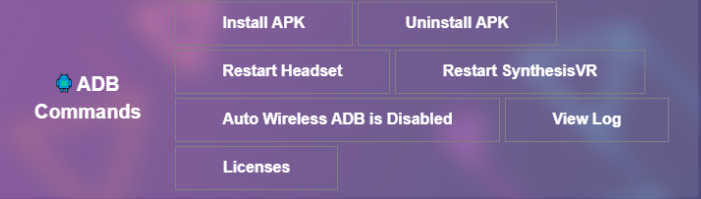
That connection unlocks a set of controls that are not available by default in your VR venue management interface:
Install APK pushes any application file from your PC directly to the headset, useful for sideloading content or updates outside the standard commercial licensing flow.
Uninstall APK removes applications remotely. Restart Headset and Restart SynthesisVR give staff the ability to recover a device from the desk without stepping into the play space, which matters when a group is waiting.
View Log pulls diagnostic logs from each headset directly through Local Manager, the support team will ask for these when troubleshooting persistent issues, and having them accessible without physical access to the device saves significant time.
Licenses shows every commercially licensed standalone game available to install on that headset, which is the fastest way to provision a new device or recover one after a reset.
For any LBE operator managing a multi-headset fleet, these are not advanced features. They are the baseline for running efficiently.
The LBE Tab: Fleet Control Built Into Local Manager
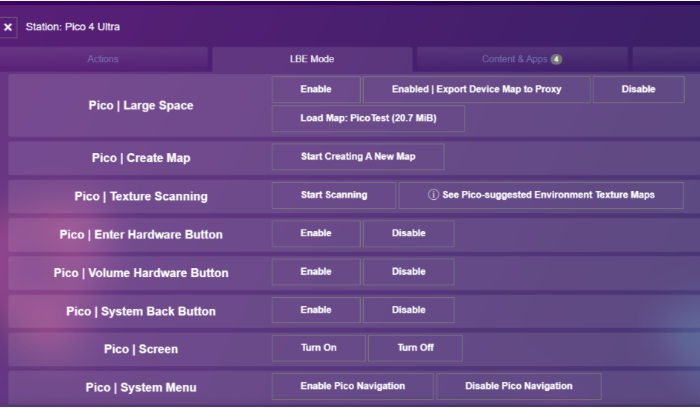
When a PICO Enterprise headset is registered under a SynthesisVR account, the platform detects the built-in LBE software automatically. The LBE tab appears in the headset settings without any manual activation. For operators coming from consumer headsets or earlier enterprise setups, this is where standalone VR management starts to look genuinely different.
The most operationally significant setting is Large Space mode. Disabled by default, enabling it expands the supported tracking area up to 30x30m (98x98ft), the range that free roam titles running in larger arenas require. When you enable it, Local Manager prompts you to name the map before the creation process begins on the headset. Naming maps clearly from the start, “Free Roam 10×10,” “Escape Room 6×6”, pays off when managing multiple configurations across a venue.
Beyond Large Space, the LBE tab surfaces several controls that most operators reach only when something goes wrong. Texture Scanning scans the physical environment and returns a real-time quality rating, Good, OK, or Poor, before a map is finalised. Part 2 of this series covered why plain walls undermine inside-out tracking. Texture Scanning is the tool that confirms whether the space is ready before guests arrive, not after a session fails.
Hardware button controls allow operators to disable the power button, volume button, back button, and system menu individually on each headset. Disabling these during active sessions is straightforward once configured and prevents the most common source of mid-session interruptions, a player accidentally pressing something they should not have. Screen On/Off, Recenter, and Seethrough Switch round out the remote control options, all manageable from the Local Manager desk without physical access to the headset.
Map Sharing: One Calibration, Every Headset
Calibrating a boundary map on each headset individually is one of the more time-consuming parts of free roam VR setup. For a ten-headset fleet, doing it manually on each device is an hour of work that can be reduced to minutes.
Once you create and calibrate a map on one headset, Export Device Map to Proxy saves it to the Admin PC. From the LBE button in the top right corner of Local Manager, you can push that map to every connected PICO headset simultaneously. All devices share the same boundary. No redrawing. No recalibration per unit.
Two things need to be in place before this works correctly. Temporary boundaries must be disabled, and automated streaming must be enabled from Local Manager. If someone deployed the map directly through the PICO Business Suite outside of SynthesisVR, it needs to be removed first, it can overwrite the boundary being managed through the platform and force-close an active session, which is not a recoverable mid-group situation.
For venues running multiple space configurations, a larger free roam footprint for evening groups and a smaller setup for daytime walk-ins, deploying different maps to the fleet on a schedule is where the next feature becomes relevant.
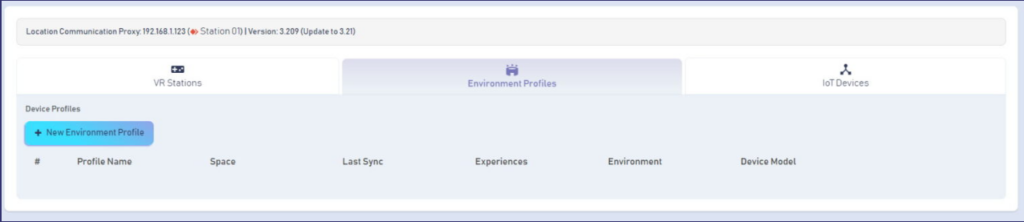
Environment Profiles: Saving What Works
Map sharing handles deployment. Environment Profiles handle the operational layer above it.
Once a boundary configuration produces consistent, reliable sessions, a specific map combined with a play area setup and headset configuration that the team trusts, Environment Profiles let operators save that state and restore it without starting from scratch. For VR venues running multiple experience types with different space requirements, or LBE operators managing more than one physical location, this turns a validated setup into a reusable asset.
The practical value is in what it protects against. Staff change. Configurations drift. A headset resets after a firmware update and someone rebuilds the setup from memory slightly differently. Environment Profiles mean the baseline is always recoverable. When a session issue surfaces and the cause is unclear, restoring a known-good configuration is the fastest first step before deeper troubleshooting.
PICO Business Streaming: Connecting Enterprise Headsets to SteamVR and Beyond
PICO Business Streaming is a two-part software suite, a PC-side application and a headset-side application, that allows PICO Enterprise headsets to run PCVR content from a Windows machine wirelessly or via USB. The headset application comes pre-installed on PICO Enterprise devices. Download the PC application from the PICO Business portal.
The current version, Business Streaming v2.1, supports three streaming modes:
SteamVR Streaming streams SteamVR content from a VR-ready PC to the headset over WiFi or USB. This is the primary mode for venues running PCVR free roam titles alongside standalone content. It requires SteamVR installed on the PC and a GPU supporting H264 or H265 encoding, several AMD entry-level and integrated graphics cards do not meet this requirement, so confirm compatibility before specifying hardware for a new PCVR station.
OpenXR Streaming streams PC applications built on the OpenXR standard. OpenXR streaming is the default mode when launching the application. If SteamVR streaming is needed, switch the mode in PC Streaming Software – Settings – General – Default Streaming Type before starting the stream. Switching once streaming has started is not possible without ending the session first.
Desktop Streaming streams the Windows desktop to the headset and allows PC control via VR controllers. Currently only supported on PICO 4 Ultra Enterprise. More relevant for training, simulation, and exhibit setups than for gaming sessions.
For WiFi streaming, the PC needs to be connected to the router via ethernet, and the router must support the 5 GHz band. USB streaming uses a USB-A to USB-C cable at USB 3.0 or above, with a recommended cable length of 4-5m (13-16ft). USB is more stable but tethers the player, better suited to seated or room-scale setups than free roam.
Automatic Streaming
Manual connection steps between sessions add friction that compounds across a busy day. Automatic streaming removes them.
Enable it on the headset via Settings, Automatic Streaming. For venues pairing specific headsets to specific PCs, the configuration file approach is worth setting up properly. On the PC side, select Bind Computer, choose the streaming method, and save the configuration file to the headset at /sdcard/pre_resource/. Once in place, each headset connects to its designated PC automatically on launch without staff intervention.
SynthesisVR extends this further. Local Manager can initiate PICO Business Streaming and pair each headset to its corresponding PC remotely. Once the headset connects, Local Manager shows a streaming indicator next to the device. The Streaming tab highlights every PC currently paired to a headset, giving operators a live view of which stations are active before a session starts — which is exactly the kind of visibility that prevents discovering a pairing issue after guests are already in the arena.
Minimum PC Requirements for Business Streaming
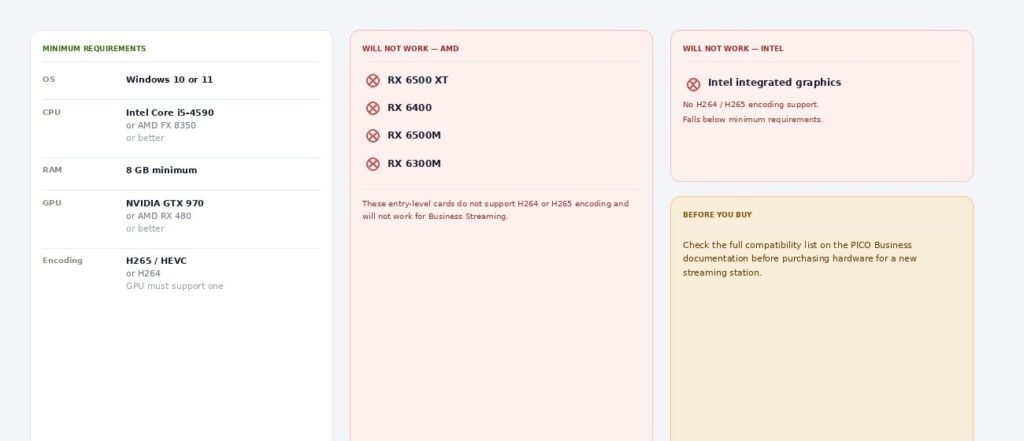
Windows 10 or 11. Intel Core i5-4590 or AMD FX 8350 or better. 8GB RAM minimum. NVIDIA GTX 970 or AMD RX 480 or better, with a GPU supporting H265/HEVC or H264 encoding. Several AMD entry-level cards, including the RX 6500 XT, RX 6400, and RX 6500M, do not support the required encoding and will not work for streaming. Intel integrated graphics also fall below minimum requirements. Check the full compatibility list on the PICO Business documentation before purchasing hardware for a new station.
Before You Start: Device Groups
For map sharing and bulk LBE commands to work, PICO headsets need to be organised into a Device Group in the PICO Business app. If this was skipped during initial setup, complete it before using the fleet management features covered here.
If Something Is Not Working
A quick checklist before contacting support:
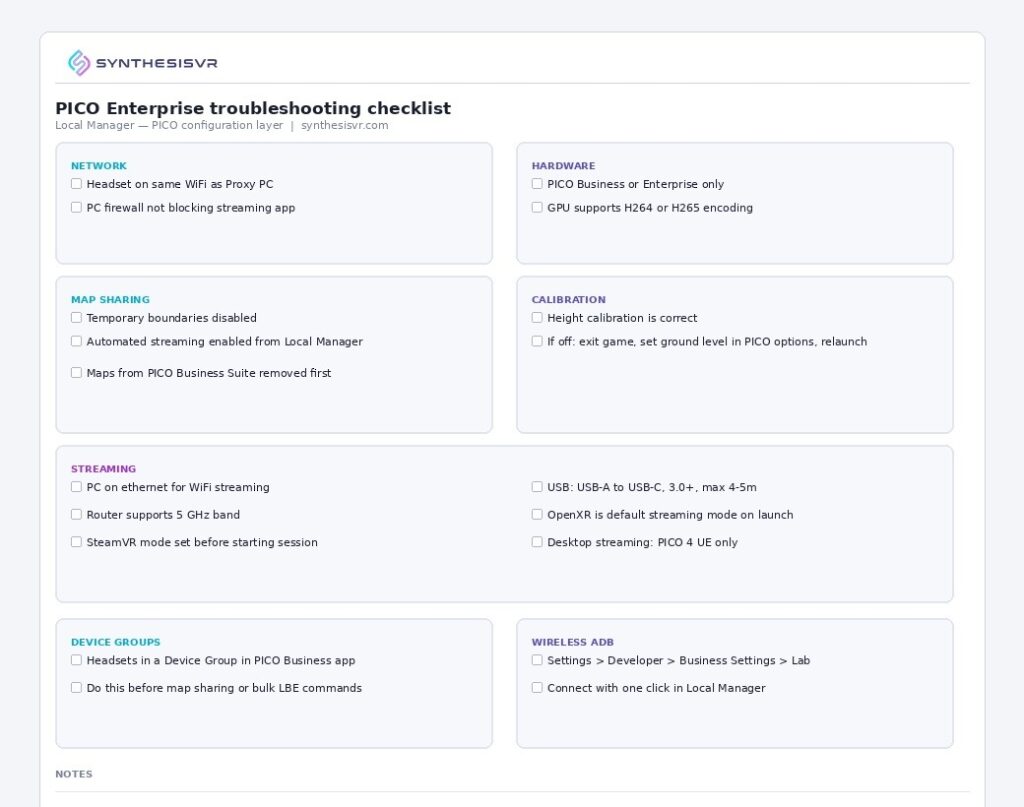
Download the one-page checklist to keep at your operations desk.
Confirm the headset is on the same WiFi network as the Proxy PC. LBE features are only available on PICO Business and Enterprise models;they will not appear on consumer headsets. Temporary boundaries must be disabled and automated streaming enabled for map sharing to function. Any map deployed directly via the PICO Business Suite outside of SynthesisVR needs to be removed before using the platform’s map management, it will overwrite the active boundary and can interrupt a live session. For streaming issues, confirm the PC firewall is not blocking the streaming application and that the GPU supports H264 or H265 encoding. If height calibration is off, exit the game, set the ground level correctly in PICO options, and relaunch.
For anything not resolved by the above, contact the team at info@synthesisvr.com.