
Every successful VR venue has a “silent operator” working behind the scenes. It doesn’t have a flashy UI, and most of your staff will never even click its icon, yet it is the single most important factor in your daily uptime. We are talking about the SynthesisVR Proxy: the local “brain” that bridges the gap between cloud-based management and your on-site hardware.
While many operators spend weeks debating the upfront costs of Meta Quest vs. PICO 4 Ultra Enterprise, the reality is that your choice of local infrastructure is what actually dictates your long-term margins. Whether you are running a high-throughput Free Roam arena or a standard arcade, the Proxy is what ensures your maps load in seconds and your sessions stay synced even if the internet fails.
What is an edge-cloud service and why does it matter?
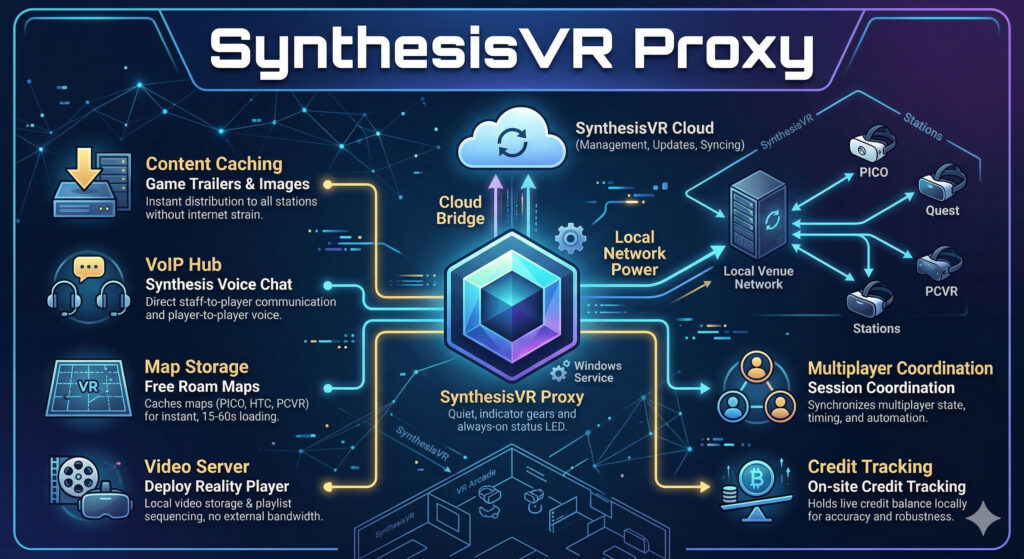
SynthesisVR is built on what is called an edge-cloud architecture. In plain terms: your venue keeps its own local copy of the data it needs to run (that is the “edge” part), while staying connected to the cloud for management, updates, and syncing.
The proxy is what makes this possible. It sits on one computer at your venue, a Windows PC, running silently as a background service and acts as the bridge between SynthesisVR’s cloud infrastructure and everything running on your local network.
When this design was first built into SynthesisVR, edge-cloud was considered an unusual approach. Today it is widely regarded as best practice, precisely because it solves a problem every venue operator eventually faces: what happens when the internet connection drops, slows down, or becomes unreliable mid-session.
With the proxy handling local communication, your venue keeps running.
What the proxy is actually doing right now
Most operators assume the proxy just handles basic connectivity. Here is what it is actually doing at your venue.
Content delivery, without touching your internet
Every time a new game trailer or image is added to the SynthesisVR platform, your stations do not download it directly from the internet. The proxy fetches and caches that data locally first. Then each station pulls it from the proxy. This means a new trailer gets distributed to every station on your network almost instantly, without each station making its own external download request. Faster, cleaner, and easier on your connection.
A built-in voice communication hub
The proxy includes a built-in VoIP central (Voice over IP, the same technology behind apps like WhatsApp calls). This powers the Synthesis Voice Chat app, which lets all players in a session talk to each other regardless of which game they are playing. More usefully for operators: it also lets staff talk directly to players mid-session, even when the game itself has no voice support. If a player needs help, you can reach them without interrupting the experience.
Free roam map storage, loaded in seconds
For free roam setups using PICO, HTC Focus, or PCVR, the proxy caches all arena map data locally. Switching maps takes between 15 and 60 seconds. Without local caching, the same process depends entirely on your internet speed and can take several minutes. For a venue running back-to-back sessions, that difference adds up quickly.
Video Vault and playlist sequencing
The proxy also functions as a video server for venues using the Deploy Reality Player. Videos can be uploaded through Local Manager and stored on the proxy, then distributed to headsets without any external download. These videos can be arranged into playlists, so a 15-minute experience made up of three different videos plays through automatically, with no manual intervention between clips. A Santa’s Sleigh Ride or a multi-chapter tour experience runs itself.
Session coordination for multiplayer games
When a Synthesis-optimised game launches across multiple stations, those stations need to agree on timing, state, and automation. All of that coordination data flows through the proxy. It acts as the central hub for that communication, keeping every station in sync throughout the session.
The Proxy handles the heavy lifting of multiplayer timing so you don’t have to. Ready to see it in action? Explore our library of Synthesis-optimized multiplayer games to find your next big hit.
Credit tracking, on-site and accurate
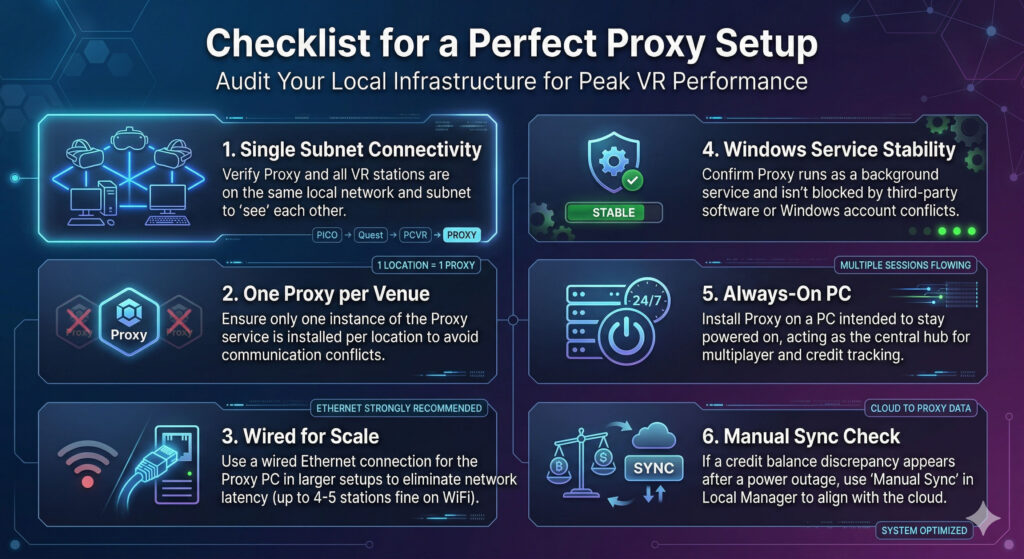
For venues on credit-based subscriptions, the proxy holds the live credit balance locally. When a session starts, the station tells the proxy how many credits to reserve. When the session closes, the final charge is confirmed and the balance updates. If something interrupts that process, a power cut, a SteamVR crash, the proxy and cloud may temporarily show different numbers. A manual sync option in Local Manager resolves this instantly, and the proxy auto-syncs with the cloud every 30 to 60 minutes regardless.
The setup mistakes worth knowing about
The proxy works best when it is set up correctly from the start. A few things that catch operators out:
The proxy and stations must be on the same network. If your venue has multiple subnets, say, different floors each with their own network, stations on a different subnet cannot reach the proxy. The fix is to install the proxy on a PC connected to the main network switch, so everything on-site can reach it from one place.
WiFi is fine for small setups, Ethernet is better for larger ones. The proxy does not move large amounts of data, but it does handle constant communication between stations. For venues with up to four or five stations, a WiFi-connected PC is usually fine. For larger setups, a wired Ethernet connection removes any risk of network latency affecting the session experience.
One proxy per venue. SynthesisVR now checks for an existing proxy before allowing a new installation, so duplicate installs are rare, but worth knowing. One location, one proxy.
The most common issue is a Windows account conflict. When the proxy installs, it creates a background Windows service account. If third-party software on the same machine interferes with that account, the proxy stops working. The most common cause is documented in the SynthesisVR knowledge base with a straightforward fix.
Checking your proxy is running
The proxy has no interface, it runs entirely in the background as a Windows Service. To confirm it is active:
- Press Windows Key + R and type services.msc
- Find SynthesisVR Proxy in the list
- Confirm the status shows Running
If it is stopped, right-click and select Start. For full installation instructions, the SynthesisVR Proxy Setup Guide covers everything step by step.
Checklist for a Perfect Proxy Setup
Before you go live, run through this quick audit to ensure your local infrastructure is optimized for peak performance:
The part that runs quietly
The proxy was designed to be invisible. When it is working, you have no reason to think about it, sessions run, maps load fast, players can hear each other, trailers appear on every station at once.
Understanding what it does is not about troubleshooting. It is about knowing what your venue management software is actually built on, and why that architecture was worth building in the first place.Questions about your proxy setup? Visit the SynthesisVR Knowledge Base or reach out to the support team directly.